Command-line guide
auditok can also be used from the command line. For information
about available parameters and descriptions, type:
auditok -h
usage: auditok [-h] [--version] [-I INT] [-F INT] [-f STRING] [-M FLOAT] [-L] [-O FILE] [-o STRING] [-j FLOAT] [-T STRING] [-u INT/STRING]
           [-a FLOAT] [-n FLOAT] [-m FLOAT] [-s FLOAT] [-d] [-R] [-e FLOAT] [-r INT] [-c INT] [-w INT] [-C STRING] [-E] [-B] [-p]
           [--save-image FILE] [--printf STRING] [--time-format STRING] [--timestamp-format TIMESTAMP_FORMAT] [-q] [-D] [--debug-file FILE]
           [input]

auditok, an audio tokenization tool.

options:
-h, --help            show this help message and exit
--version, -v         show program's version number and exit
-q, --quiet           Quiet mode: Do not display any information on the screen.
-D, --debug           Debug mode: output processing operations to STDOUT.
--debug-file FILE     Save processing operations to the specified file.

Input-Output options::
input                 Input audio or video file. Use '-' for stdin [Default: read from a microphone using PyAudio].
-I INT, --input-device-index INT
                        Audio device index [Default: None]. Optional and only effective when using PyAudio.
-F INT, --audio-frame-per-buffer INT
                        Audio frame per buffer [Default: 1024]. Optional and only effective when using PyAudio.
-f STRING, --input-format STRING
                        Specify the input audio file format. If not provided, the format is inferred from the file extension. If the output file
                        name lacks an extension, the format is guessed from the file header (requires pydub). If neither condition is met, an
                        error is raised.
-M FLOAT, --max-read FLOAT
                        Maximum data (in seconds) to read from a microphone or a file [Default: read until the end of the file or stream].
-L, --large-file      Whether the input file should be treated as a large file. If True, data will be read from file on demand, otherwise all
                        audio data is loaded into memory before tokenization.
-O FILE, --save-stream FILE
                        Save read audio data (from a file or a microphone) to a file. If omitted, no audio data will be saved.
-o STRING, --save-detections-as STRING
                        Specify the file name format to save detected events. You can use the following placeholders to construct the output
                        file name: {id} (sequential, starting from 1), {start}, {end}, and {duration}. Time placeholders are in seconds.
                        Example: 'Event_{id}{start}-{end}{duration:.3f}.wav'
-j FLOAT, --join-detections FLOAT
                        Join (glue) detected audio events with a specified duration of silence between them. To be used in combination with the
                        --save-stream / -O option.
-T STRING, --output-format STRING
                        Specify the audio format for saving detections and/or the main stream. If not provided, the format will be (1) inferred
                        from the file extension or (2) default to raw format.
-u INT/STRING, --use-channel INT/STRING
                        Specify the audio channel to use for tokenization when the input stream is multi-channel (0 refers to the first
                        channel). By default, this is set to None, meaning all channels are used, capturing any valid audio event from any
                        channel. Alternatively, set this to 'mix' (or 'avg'/'average') to combine all channels into a single averaged channel
                        for tokenization. Regardless of theoption chosen, saved audio events will have the same number of channels as the input
                        stream. [Default: None, use all channels].

Tokenization options::
Set audio events' duration and set the threshold for detection.

-a FLOAT, --analysis-window FLOAT
                        Specify the size of the analysis window in seconds. [Default: 0.01 (10ms)].
-n FLOAT, --min-duration FLOAT
                        Minimum duration of a valid audio event in seconds. [Default: 0.2].
-m FLOAT, --max-duration FLOAT
                        Maximum duration of a valid audio event in seconds. [Default: 5].
-s FLOAT, --max-silence FLOAT
                        Maximum duration of consecutive silence allowed within a valid audio event in seconds. [Default: 0.3]
-d, --drop-trailing-silence
                        Remove trailing silence from a detection. [Default: trailing silence is retained].
-R, --strict-min-duration
                        Reject events shorter than --min-duration, even if adjacent to the most recent valid event that reached max-duration.
                        [Default: retain such events].
-e FLOAT, --energy-threshold FLOAT
                        Set the log energy threshold for detection. [Default: 50]

Audio parameters::
Set audio parameters when reading from a headerless file (raw or stdin) or when using custom microphone settings.

-r INT, --rate INT    Sampling rate of audio data [Default: 16000].
-c INT, --channels INT
                        Number of channels of audio data [Default: 1].
-w INT, --width INT   Number of bytes per audio sample [Default: 2].

Use audio events::
Use these options to print, play, or plot detected audio events.

-C STRING, --command STRING
                        Provide a command to execute when an audio event is detected. Use '{file}' as a placeholder for the temporary WAV file
                        containing the event data (e.g., `-C 'du -h {file}'` to display the file size or `-C 'play -q {file}'` to play audio
                        with sox).
-E, --echo            Immediately play back a detected audio event using pyaudio.
-B, --progress-bar    Show a progress bar when playing audio.
-p, --plot            Plot and displays the audio signal along with detections (requires matplotlib).
--save-image FILE     Save the plotted audio signal and detections as a picture or a PDF file (requires matplotlib).
--printf STRING       Prints information about each audio event on a new line using the specified format. The format can include text and
                        placeholders: {id} (sequential, starting from 1), {start}, {end}, {duration}, and {timestamp}. The first three time
                        placeholders are in seconds, with formatting controlled by the --time-format argument. {timestamp} represents the system
                        date and time of the event, configurable with the --timestamp-format argument. Example: '[{id}]: {start} -> {end} --
                        {timestamp}'.
--time-format STRING  Specify the format for printing {start}, {end}, and {duration} placeholders with --printf. [Default: %S]. Accepted
                        formats are : - %S: absolute time in seconds - %I: absolute time in milliseconds - %h, %m, %s, %i: converts time into
                        hours, minutes, seconds, and milliseconds (e.g., %h:%m:%s.%i) and only displays provided fields. Note that %S and %I can
                        only be used independently.
--timestamp-format TIMESTAMP_FORMAT
                        Specify the format used for printing {timestamp}. Should be a format accepted by the 'datetime' standard module.
                        [Default: '%Y/%m/%d %H:%M:%S'].
Below, we provide several examples covering the most common use cases.
Real-Time audio acquisition and event detection
To try auditok from the command line with your own voice, you’ll need to
either install pyaudio so
that auditok can read directly from the microphone, or record audio with
an external program (e.g., sox) and redirect its output to auditok.
To read data directly from the microphone and use default parameters for audio data and tokenization, simply type:
auditok
This will print the id, start time, and end time of each detected
audio event. As mentioned above, no additional arguments were passed in the
previous command, so auditok will use its default values. The most important
arguments are:
-n,--min-duration: minimum duration of a valid audio event in seconds, default: 0.2-m,--max-duration: maximum duration of a valid audio event in seconds, default: 5-s,--max-silence: maximum duration of a continuous silence within a valid audio event in seconds, default: 0.3-e,--energy-threshold: energy threshold for detection, default: 50
Read audio data with an external program
You can use an external program, such as sox (sudo apt-get install sox),
to record audio data in real-time, redirect it, and have auditok read the data
from standard input:
rec -q -t raw -r 16000 -c 1 -b 16 -e signed - | auditok - -r 16000 -w 2 -c 1
Note that when reading data from standard input, the same audio parameters must
be set for both sox (or any other data generation/acquisition tool) and auditok.
The following table provides a summary of the audio parameters:
Audio parameter |
sox option |
auditok option |
auditok default |
|---|---|---|---|
Sampling rate |
-r |
-r |
16000 |
Sample width |
-b (bits) |
-w (bytes) |
2 |
Channels |
-c |
-c |
1 |
Encoding |
-e |
NA |
always a signed int |
Based on the table, the previous command can be run with the default parameters as:
rec -q -t raw -r 16000 -c 1 -b 16 -e signed - | auditok -
Play back audio detections
Use the -E (or --echo) option :
auditok -E
# or
rec -q -t raw -r 16000 -c 1 -b 16 -e signed - | auditok - -E
Using -E requires pyaudio, if it’s not installed you can use the -C
(used to run an external command with detected audio event as argument):
rec -q -t raw -r 16000 -c 1 -b 16 -e signed - | auditok - -C "play -q {file}"
Using the -C option, auditok will save a detected event to a temporary wav
file, fill the {file} placeholder with the temporary name and run the
command. In the above example we used -C to play audio data with an external
program but you can use it to run any other command.
Output detection details
By default, auditok outputs the id, start, and end times for each
detected audio event. The start and end values indicate the beginning and end of
the event within the input stream (file or microphone) in seconds. Below is an
example of the output in the default format:
1 1.160 2.390
2 3.420 4.330
3 5.010 5.720
4 7.230 7.800
The format of the output is controlled by the --printf option. Alongside
{id}, {start} and {end} placeholders, you can use {duration} and
{timestamp} (system timestamp of detected event) placeholders.
Using the following format for example:
auditok audio.wav --printf "{id}: [{timestamp}] start:{start}, end:{end}, dur: {duration}"
the output will look like:
1: [2021/02/17 20:16:02] start:1.160, end:2.390, dur: 1.230
2: [2021/02/17 20:16:04] start:3.420, end:4.330, dur: 0.910
3: [2021/02/17 20:16:06] start:5.010, end:5.720, dur: 0.710
4: [2021/02/17 20:16:08] start:7.230, end:7.800, dur: 0.570
The format of {timestamp} is controlled by --timestamp-format (default:
“%Y/%m/%d %H:%M:%S”) whereas that of {start}, {end} and {duration}
by --time-format (default: %S, absolute number of seconds). A more detailed
format with --time-format using %h (hours), %m (minutes), %s (seconds)
and %i (milliseconds) directives is possible (e.g., “%h:%m:%s.%i).
To completely disable printing detection information use -q.
Save detections
You can save audio events to disk as they’re detected using -o or
--save-detections-as followed by a file name with placeholders. To create
a uniq file name for each event, you can use {id}, {start}, {end}
and {duration} placeholders as in this example:
auditok --save-detections-as "{id}_{start}_{end}.wav"
When using {start}, {end}, and {duration} placeholders, it is
recommended to limit the number of decimal places for these values to 3. You
can do this with a format like:
auditok -o "{id}_{start:.3f}_{end:.3f}.wav"
Save the full audio stream
When reading audio data from the microphone, you may want to save it to disk.
To do this, use the -O or --save-stream option:
auditok --save-stream output.wav
Note that this will work even if you read data from a file on disk.
Join detected audio events, inserting a silence between them
Sometimes, you may want to detect audio events and create a new file containing these events with pauses of a specific duration between them. This is useful if you wish to preserve your original audio data while adjusting the length of pauses (either shortening or extending them).
To achieve this, use the -j or --join-detections option together
with the -O / --save-stream option. In the example below, we
read data from input.wav and save audio events to output.wav, adding
1-second pauses between them:
auditok input.wav --join-detections 1 -O output.wav
Plot detections
Audio signal and detections can be plotted using the -p or --plot option.
You can also save the plot to disk using --save-image. The following example
demonstrates both:
auditok -p --save-image "plot.png" # can also be 'pdf' or another image format
output example:
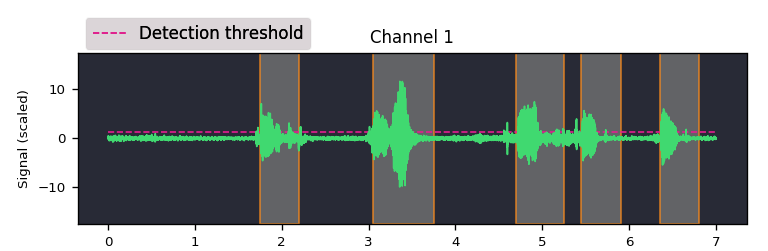
Plotting requires matplotlib.